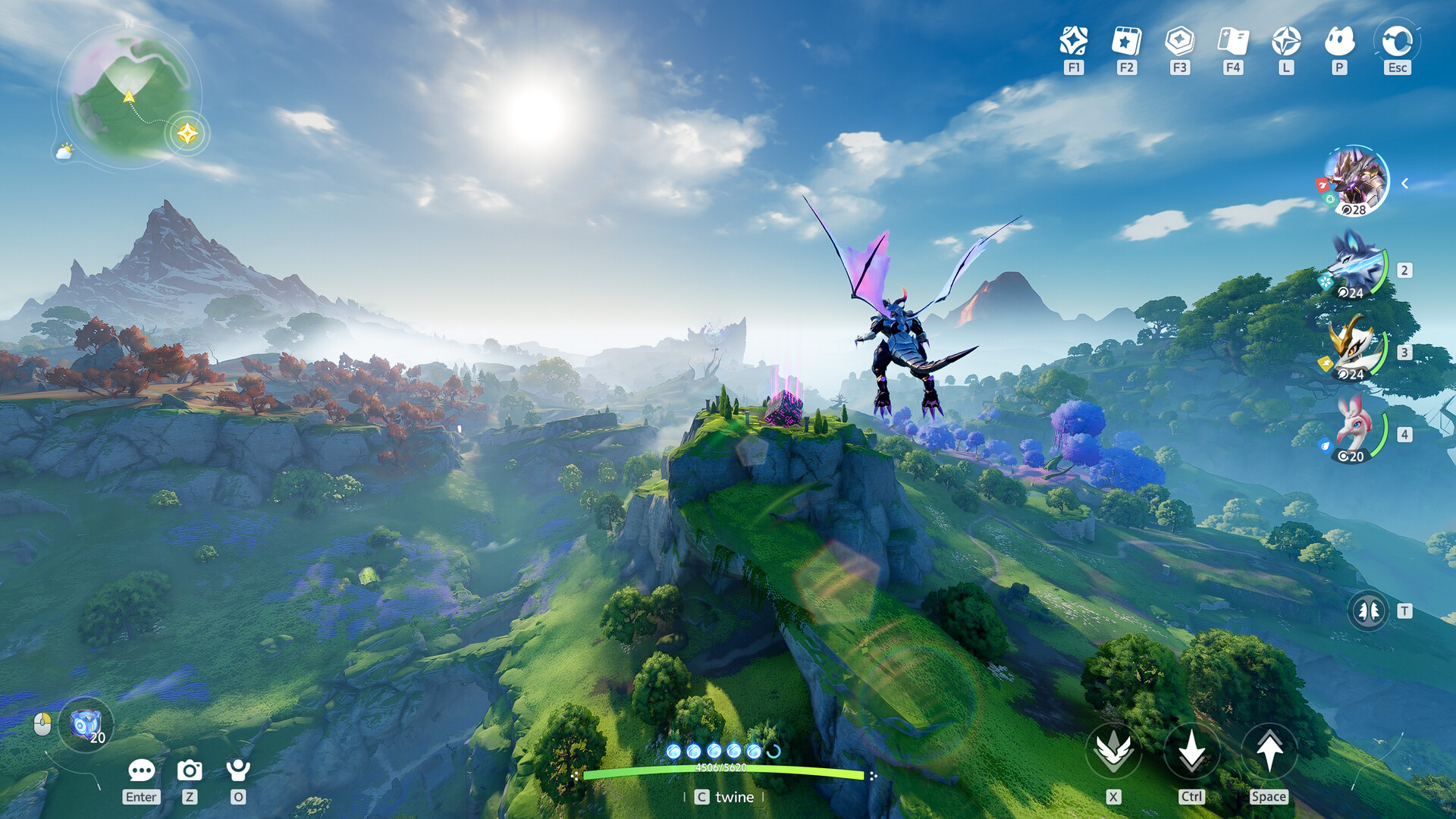
Aniimo Controller Support Guide: Best Settings for Exploration
Struggling with Aniimo controller support? Discover the best button mappings, sensitivity settings, and fixes for a seamless creature-catching experience.
Published:
Table of Contents
The vast world of Idyll in Aniimo offers a thrilling creature-collecting experience, but your adventure can be quickly derailed if your input device doesn't feel right. Many players have discovered that getting the perfect Aniimo controller support is essential for navigating the game’s open world and mastering combat sequences. Whether you are using a standard gamepad or playing on a handheld device like the Steam Deck, optimizing your layout is the first step toward becoming a top-tier Pathfinder.
Understanding Aniimo controller support is vital because the game’s complex mechanics—ranging from precise catching to rapid traversal—demand responsive inputs. While the game provides default presets, many players find these insufficient for the high-stakes legendary encounters or competitive "Egg Heist" modes. In this guide, we break down everything you need to know to configure your controller for maximum comfort and efficiency.
Understanding Controller Limitations and Potential Issues
When you first launch Aniimo, you might encounter situations where your gamepad isn't detected correctly, or the game defaults to keyboard and mouse inputs. This is a common hurdle reported by the community. According to recent player feedback on platforms like YouTube and Steam, some users have reported that the game does not always initialize with gamepad priority.
To ensure your Aniimo controller support functions correctly, it is recommended to check your Steam input settings. If you are playing on a Steam Deck, you may need to force a specific compatibility layer, such as UMU Proton, to resolve handshake issues between the hardware and the game engine.
Quick Troubleshooting Checklist
Issue
Recommended Action
Controller not detected
Toggle Steam Input settings in the library
Input lag
Reduce vibration strength to 2
Buttons unresponsive
Reset keybinds to "Default" in the settings menu
Handheld performance
Enable FSR or Frame Generation for smoother aiming
Optimal Controller Sensitivity and Dead Zones
Precision is key in Aniimo. Whether you are aiming your Aniipod or dodging incoming attacks during a boss fight, the behavior of your analog sticks dictates your success. We have synthesized recommendations from top-tier players to help you find the "sweet spot" for movement and camera control.
Setting your dead zones too low can lead to "stick drift," while setting them too high makes the character feel unresponsive. A dead zone value of 20 is widely considered the ideal balance for most modern controllers, providing enough sensitivity to react to threats without triggering accidental inputs.
Recommended System Settings
Setting
Value
Why it matters
Vibration Strength
2
Reduces battery drain and unnecessary distractions
Left Stick Dead Zone
20
Prevents unintentional character movement
Right Stick Dead Zone
20
Ensures steady aiming during catch sequences
Invert Camera
Off
Keeps exploration intuitive
Customizing Your Combat and Traversal Layout
The default button mapping for Aniimo is serviceable, but it doesn't always cater to the advanced movement required for traversing the sky-floating metropolis of Idyll. By remapping your buttons, you can perform complex maneuvers like jumping, climbing, and skill-chaining more fluidly.
One effective strategy is to keep your "Catch Mode" and "Twine" actions on the triggers. This mimics the standard control schemes seen in similar popular creature-collection titles, making the muscle memory transition easier for veteran genre players.
Pro-Level Keybind Configuration
Action
Button Assignment
Catch Mode
Left Trigger (LT)
Twine (Ability)
Right Trigger (RT)
Skill 1 / 2
LB / RB
Jump / Climb
A
Dash
B
Attack / Cancel
X
Interact
Y
Advanced Combat Combinations
For quick execution during high-intensity combat, assign "Chain Ultimate" to Y+B and "Mobility" to X+A. These combinations allow you to maintain full control of the camera while executing powerful abilities, reducing the need to shift your hand placement mid-fight.
Steam Deck Optimization and Gameplay Tips
For those playing on the Steam Deck, Aniimo controller support is only half the battle. Because the game is graphically intensive, you may need to balance your graphical settings to keep the frame rate stable, which in turn makes your controller inputs feel more responsive.
According to official game information on Steam, the game is a massive open-world RPG, and performance can vary based on your hardware. If you feel that your inputs are "delayed," it is likely a frame-pacing issue rather than a controller issue. Using "Magic Frame Generation" has been noted by community members as a highly effective way to stabilize performance above 40-60 FPS, which significantly improves the feeling of controller responsiveness.
Performance vs. Quality Modes
Performance Mode: Recommended for handheld devices to ensure lower input latency.
Quality Mode: Use this only if you are playing on a high-end desktop PC to maintain visual fidelity.
How to Handle Legendary Encounters
The developers at Pawprint Studio have recently overhauled the legendary encounter system based on player criticism. Instead of the "gacha-like" loop that previously frustrated players, the new system focuses on exploration and earned progression.
When facing legendary bosses, your controller settings will play a massive role. You need to be able to dodge, climb to higher vantage points, and use your Aniipods with perfect timing. Mastering the "Lock On" function (Right Stick Press) is crucial during these fights, as it keeps the camera focused on the boss while you maneuver around them to find an opening.
Avoid Repetitive Strain
If you are spending hours in the "Egg Heist" mode, ensure your controller is set to a comfortable vibration level. High vibration strength during prolonged sessions can lead to hand fatigue.
FAQ: Frequently Asked Questions
Does Aniimo have full controller support?
Yes, Aniimo features full controller support for all core activities, including movement, combat, and menu navigation. If you encounter issues, ensure your Steam Input is correctly configured in your library settings.
What is the best way to fix input lag in Aniimo?
If you experience input lag, lower the vibration strength to 2 and ensure your frame rate is stable. Utilizing tools like Frame Generation can significantly improve the connection between your button press and the game's reaction.
Can I remap my buttons in Aniimo?
Yes, the game allows for custom keybinds. We recommend moving combat-essential actions to the bumpers and triggers to keep your thumbs on the analog sticks for camera and movement control.
Is there a specific setting for Steam Deck users?
Steam Deck users should force the UMU Proton compatibility layer if the game fails to recognize the controller layout upon launch. Always check the official community hub for the latest driver updates.