Best Aniimo Steam Deck Settings: How to Get 60 FPS Now
Discover the best Aniimo Steam Deck settings to boost performance. Learn how to fix controls, use Proton, and reach 60 FPS in this creature-catching RPG.
Published:
Table of Contents
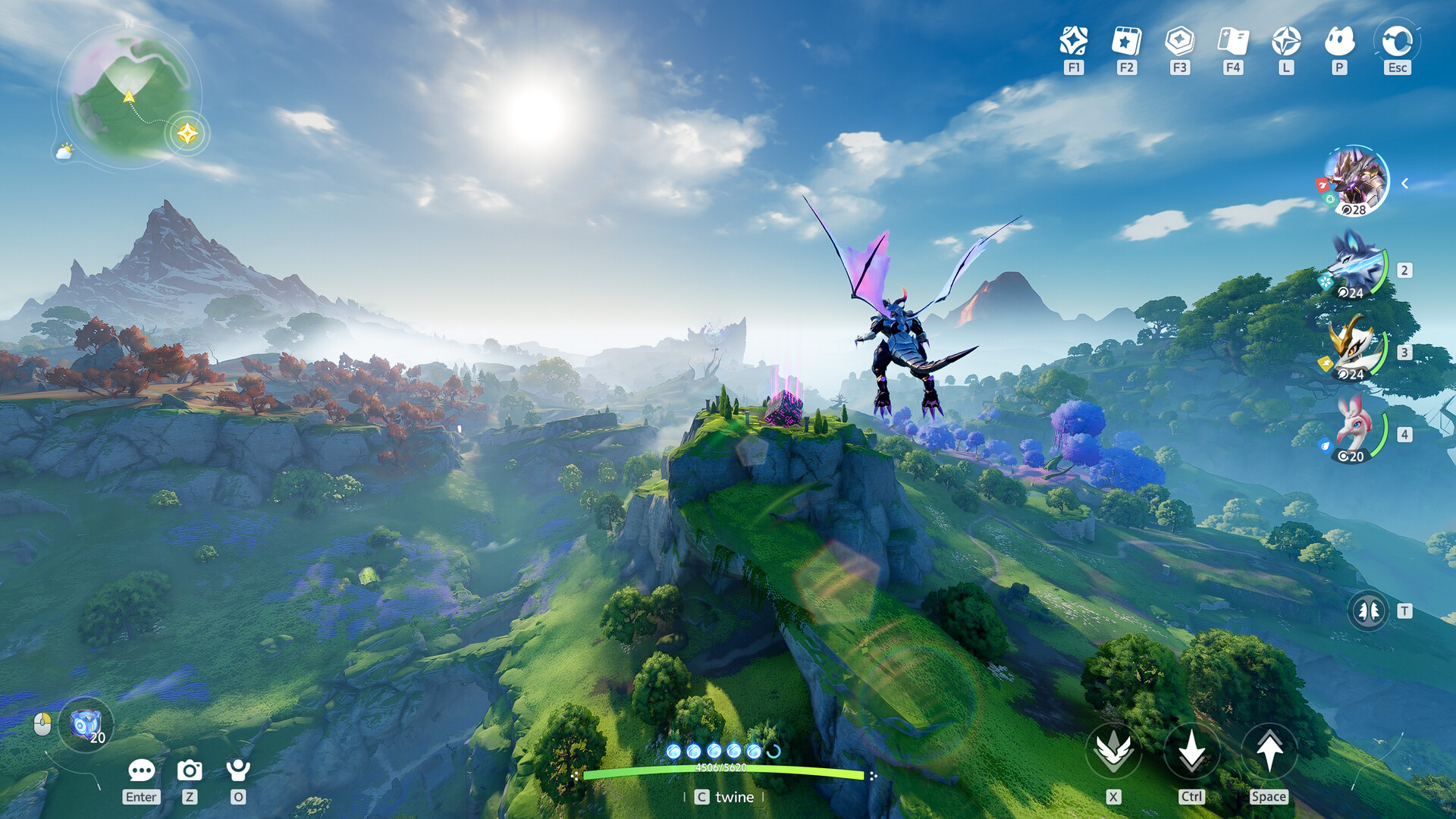
The arrival of the vibrant, open-world creature-catching RPG Aniimo has sparked massive excitement among handheld enthusiasts. If you are looking to jump into this Pixar-esque world of Idle, you are likely wondering how to optimize aniimo steam deck performance for a smooth experience. While the game offers a cozy and relaxing atmosphere, it is surprisingly demanding on mobile hardware, often requiring specific tweaks to maintain a stable frame rate.
In this comprehensive guide, we will break down the essential steps to get aniimo steam deck gameplay running at its absolute best. From forcing specific Proton compatibility layers to utilizing advanced frame generation techniques, we have gathered community reports and technical data to ensure your journey as a Pathfinder is uninterrupted by stutters or control issues. Whether you are a fan of Palworld or a Pokémon veteran, getting this game to run at 60 FPS on the Deck is the ultimate way to play.
Initial Setup and Compatibility Fixes
Before you can enjoy the lush green fields and diverse biomes of Idle, there are a few technical hurdles to clear. As of the current launch window, Aniimo does not have "Verified" status, and the developers have noted that official Linux support is not a priority while they focus on the core Windows and mobile builds. However, thanks to the flexibility of SteamOS, players have found reliable workarounds.
According to community reports from early adopters, the game may struggle to launch or experience crashes if left on default settings. The most successful method to bypass these issues is to force a specific version of Proton. Specifically, UMU Proton 10 has shown the highest success rate in stabilizing the game’s executable.
Another common hurdle is the input method. Many players have noted that the game defaults to keyboard and mouse controls upon the first launch. This can be frustrating when you are expecting a console-like experience. You must manually navigate to the settings menu—using the touch screen if necessary—to switch the input to Gamepad.
Steam Deck Compatibility Checklist
Requirement
Recommended Setting
Reason
Proton Version
UMU Proton 10
Fixes launch crashes and improves stability.
Input Method
Gamepad (Manual Switch)
Defaults to KBM; must be changed for handheld play.
Install Location
Internal SSD
Reduces stuttering during open-world asset streaming.
Storage Space
~20GB+
Ensure enough overhead for shaders and updates.
Input Workaround
If your buttons aren't responding at the title screen, use the Steam Deck's right trackpad as a mouse to enter the settings menu. Once you toggle "Gamepad Support" to ON, the physical buttons will map correctly.
Optimizing Graphical Settings for Stability
Once the game is running, the next challenge is maintaining a playable frame rate. Even with its stylized, Pixar-like art direction, Aniimo features complex environmental interactions and a vast draw distance that can tax the Steam Deck’s APU. Without optimization, you might find the game dipping into the low 20s in dense forest biomes or during intense elemental battles.
To achieve a baseline of 30 to 40 FPS, a "Low" preset is generally required. While this might sound discouraging, the game’s art style holds up remarkably well at lower settings. The vibrant colors and clean character designs ensure that the visual charm remains intact even without high-resolution shadows or ultra-dense foliage.
Recommended Graphical Configuration
Setting
Value
Impact
Preset
Low / Custom
Necessary to prevent GPU thermal throttling.
Resolution Scale
100% (with FSR)
Keeps UI sharp while upscaling the 3D world.
FSR (In-game)
Enabled / Performance
Crucial for boosting frames in open areas.
Shadow Quality
Low
Significant CPU/GPU relief in sunlight.
Anti-Aliasing
TAA or Off
Reduces blurriness at lower internal resolutions.
Mode
Performance Mode
Prioritizes frame stability over visual density.
By setting the game to Performance Mode and enabling the in-game FSR (FidelityFX Super Resolution), you can bridge the gap between "playable" and "enjoyable." Player experience suggests that FSR is the single most important toggle for the aniimo steam deck experience, as it allows the hardware to render at a lower resolution and upscale, saving precious battery life and thermal headroom.
Reaching 60 FPS with Frame Generation
For many players, 30 FPS isn't enough for a modern action-RPG. If you want a truly fluid experience that rivals a high-end PC, you will need to look into third-party tools like MAGic Frame Generation. Because the Steam Deck hardware is fixed, "fake" frames created via interpolation are the only way to reach 60 FPS in a title as unoptimized as Aniimo currently is.
Community testing has shown that using Frame Generation can take a base 30 FPS and effectively double it. While some purists worry about input latency or "ghosting" (visual artifacts behind moving objects), the general consensus is that for a cozy creature collector, the trade-off is well worth it. In a world where you are constantly sprinting across fields or flying with a Celestis, the smoothness of 60 FPS makes the world of Idle feel much more alive.
Frame Generation Performance Comparison
Feature
Without Frame Gen
With MAGic Frame Gen
Average FPS
28 - 35 FPS
55 - 60 FPS
Visual Smoothness
Noticeable stutter in cities
Fluid camera movement
Input Latency
Low
Slightly higher (negligible for RPGs)
Ghosting
None
Minimal around fast-moving Aniimo
Battery Life
~2.5 Hours
~2 Hours
To implement this, you would typically run the game in windowed mode and use the frame generation overlay. This allows the Deck to focus on generating a stable base frame rate while the software handles the smoothing. It is a game-changer for anyone who finds the native 30 FPS cap too restrictive.
Exploring the World of Idle: Gameplay Mechanics
Now that your aniimo steam deck is tuned for performance, it’s time to look at what makes the game worth playing. Aniimo is set in the world of Idle, a land filled with over 200 unique creatures. You play as a Pathfinder, tasked with discovering the ecosystems of these creatures and uncovering the secrets of the land.
One of the standout features is the "Twining" system. This isn't just a combat mechanic; it is a core part of exploration. When you twine with an Aniimo, you take direct control of them. This allows you to use their specific movement abilities to navigate the environment. For example, twining with an Emberpup lets you sprint across plains at high speeds, while the Floofynemi allows you to float across gaps that would be impossible for a human to jump.
Biomes and Creature Habitats
The world is divided into distinct biomes, each housing specific types of Aniimo. The time of day and weather also play a massive role. Some creatures, like the ghostly Sparky, only appear at night. Others might only emerge during rainstorms or in specific heatwaves.
Biome
Primary Element
Notable Aniimo
Traversal Benefit
Lush Green Fields
Grass / Wind
Bud Claw, Floofynemi
Floating / Gliding
Dark Swampy Forest
Dark / Poison
Iris (Forest Form)
Stealth / Climbing
Lightning Highlands
Electric
Sparky (Night only)
Fast Travel / Speed
Riverside / Beach
Water
Skippy, Pranky
Swimming / Surfing
Volcanic Peaks
Fire
Emberpup, Scorchtail
Heat Resistance / Dashing
This depth encourages players to catch multiple versions of the same creature. An Iris found in the flower fields will have different skills and a different visual appearance than an Iris found in the dark forest. This adaptation system makes the world feel like a living, breathing ecosystem rather than a static map.
Evolution, Base Building, and the RV System
Progression in Aniimo goes beyond just leveling up. The game features a complex evolution system where many creatures have branching paths. Unlike traditional monster battlers where evolution is a linear level-up event, Aniimo often requires specific environmental conditions or stat thresholds to trigger a change.
When you aren't out exploring, you will be managing your "Homeland." This is a unique take on base building. Instead of a static house, you have an RV that acts as a mobile hub. You can park your RV at designated parks across the map and enter a "pocket dimension" located in the back of the vehicle. Here, you can farm, mine, and decorate your space.
The Role of Aniimo in Your Base
Your captured creatures aren't just for fighting; they are essential workers for your farm and workshop. Assigning the right Aniimo to the right task is key to maximizing your efficiency.
Fire Types: Excel at cooking and processing ores in the furnace.
Water Types: Automatically water your crops and fill wells.
Earth Types: Highly efficient at mining stones and minerals from the backyard dimension.
Grass Types: Speed up the growth cycle of rare plants and trees.
By fulfilling special orders through your vendor, you earn Homeland Currency, which is used to upgrade your RV’s facilities. This loop of exploring to find workers and returning to build your home provides a satisfying break from the tactical combat.
Combat Depth and Elemental Strategy
While the exploration is relaxing, the combat in Aniimo requires tactical thinking, especially in the end-game PvP mode known as "Egg Heist." You can have up to four Aniimo in your battle party, and you can swap between them instantly.
Combat is real-time, and you can choose to fight alongside your creature as a Pathfinder—providing buffs and secondary attacks—or "Twine" with them to take direct control of their ultimate abilities. Understanding the elemental wheel is crucial for success, especially when facing Elite or Umbral forms of creatures.
Elemental Matchup Table
Attacker Element
Strong Against
Weak Against
Fire
Grass, Ice
Water, Rock
Water
Fire, Ground
Grass, Electric
Grass
Water, Ground
Fire, Flying
Electric
Water, Flying
Ground, Grass
Dark
Psychic, Ghost
Light, Fighting
For a more detailed look at the game's mechanics and official updates, you should visit the Aniimo Steam Store Page, where you can find the latest patch notes and community discussions regarding Linux and handheld performance.
Final Thoughts on the Aniimo Experience
Aniimo is a breath of fresh air in the creature-collecting genre. Its focus on exploration, puzzle-solving, and "Twining" creates a sense of wonder that is often lost in more combat-heavy titles. While the aniimo steam deck performance requires some manual intervention today, the result is a beautiful, portable adventure that feels tailor-made for handheld play.
By following the settings outlined in this guide—specifically forcing UMU Proton 10 and utilizing FSR—you can transform a stuttery launch experience into a smooth journey through the world of Idle. As the game continues to grow and more of the 200+ Aniimo are discovered, the community will undoubtedly find even more ways to squeeze performance out of the Deck.
Key Takeaways
To play Aniimo on Steam Deck, force UMU Proton 10, switch to Gamepad in settings, and use Low Graphical Presets with FSR enabled. For 60 FPS, use a third-party frame generation tool.
Frequently Asked Questions
Is Aniimo officially supported on Steam Deck?
Currently, Aniimo is not officially "Verified" or "Supported" by the developers for SteamOS/Linux. However, it is fully playable using Proton compatibility layers. Players are encouraged to use Proton Experimental or UMU Proton 10 for the best results.
How do I fix the controls on my Steam Deck?
Upon first launch, the game often defaults to keyboard and mouse inputs. To fix this, use the touch screen or trackpad to enter the in-game Settings menu, go to the "Controls" or "General" tab, and toggle "Gamepad Support" to ON. The aniimo steam deck controls should then work perfectly.
Can I reach 60 FPS in Aniimo?
Native 60 FPS is difficult to achieve due to the game's high CPU and GPU demands. However, by using the "Performance" graphical preset and enabling a frame generation tool like MAGic Frame Gen, you can reach a smooth 60 FPS experience.
Does the game have gacha mechanics for catching creatures?
No, the developers have stated that catching Aniimo is done through gameplay, exploration, and the "Bonding Pact" events. The monetization is focused on a premium battle pass, cosmetics, and energy refills, keeping the core creature-collection loop fair for all players.